
Loading Panel
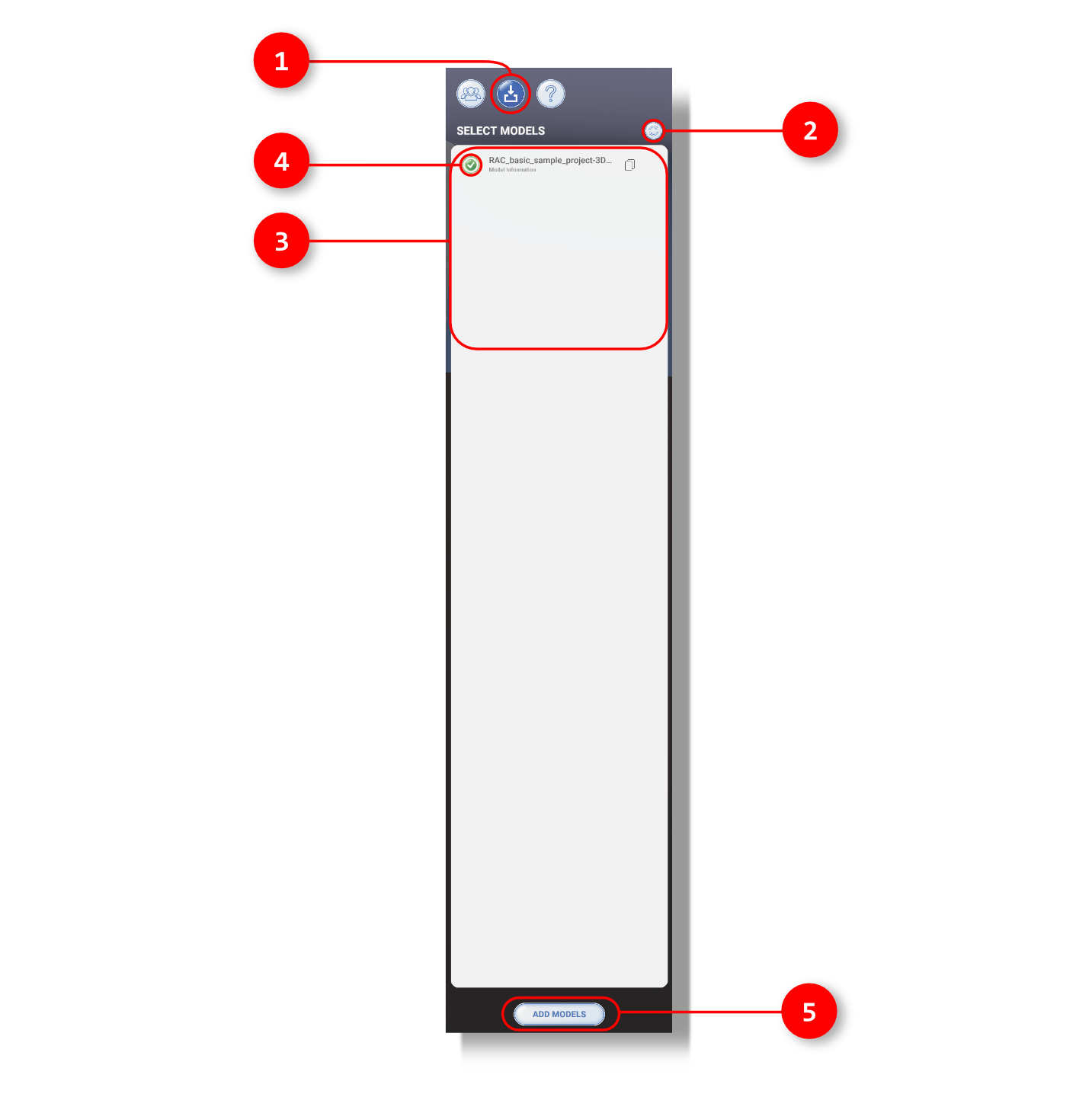
1. The user clicks here to view the current models loaded in your Toolbelt.
2. By clicking the refresh icon, any new Toolbelt models that were exported from Revit will now show up in the list of exported models.
3. This is where a list of all loaded exported models will show up.
4. By clicking the checkmark, the icon will either highlight green or grey indicating whether that specific model is selected or not.
5. Once the model is selected, the user can select the Add Model button to load it into your active Toolbelt file.