
Meeting Panel
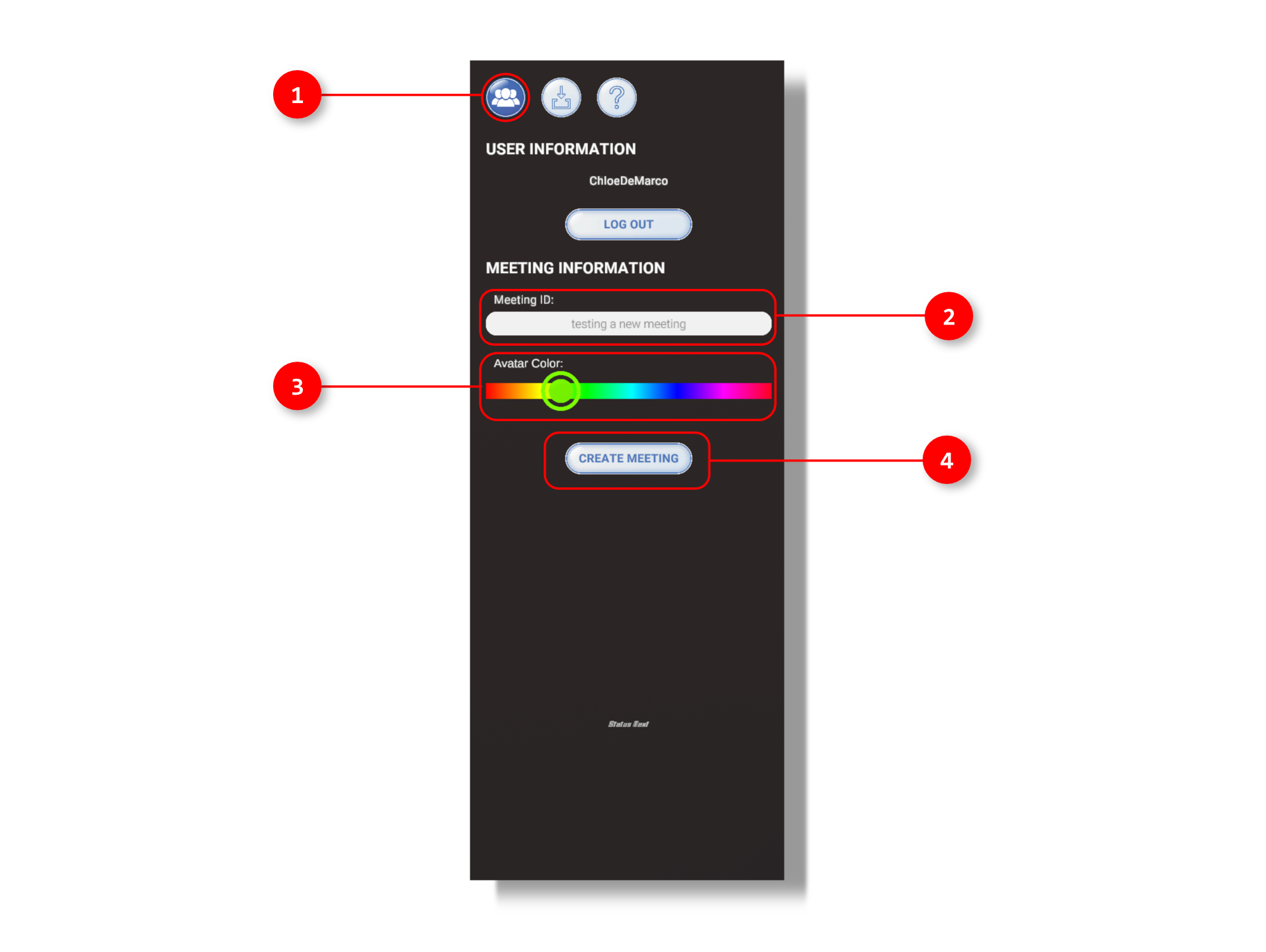
1. The user clicks here to view the user's information.
2. This text bar allows the user to create a custom title for the meeting name, which will be shared with those invited to the meeting.
3. The color slides allows the user to pick a custom color for their avatar, which will be viewed by others in the meeting.
4. By clicking the Create Meeting button, the user will have successfully created a custom meeting that can be shared and experienced with others.
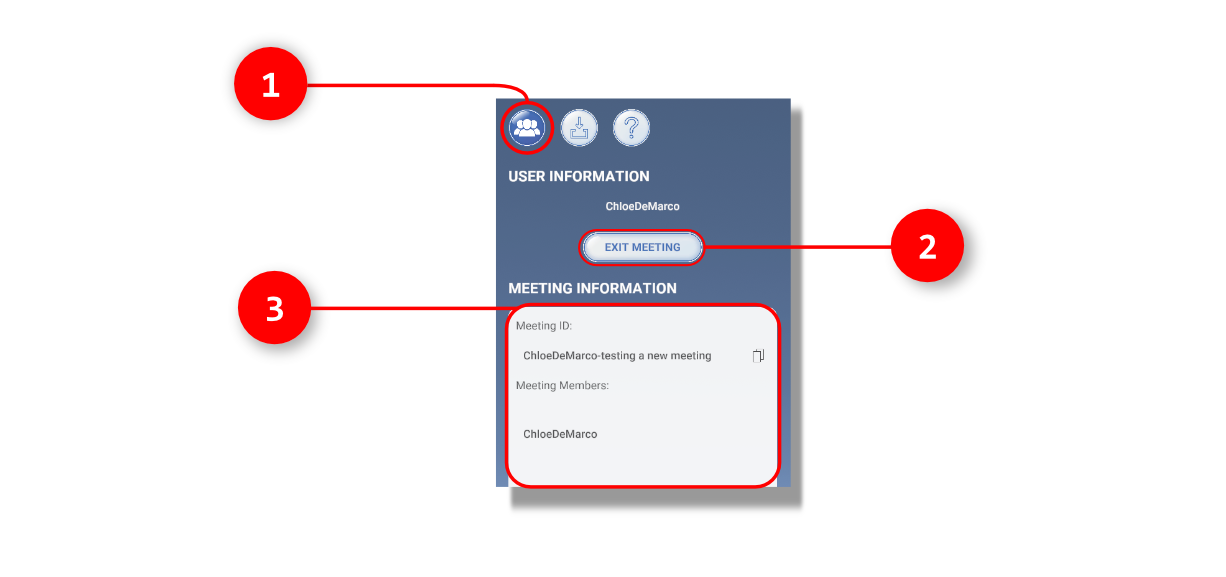
1. Once the meeting is created, the user can click the Info button to view the user's information and the meeting information.
2. By clicking the Exit Meeting button, the user will remove his or herself from the active meeting.
3. This panel informs the ID name of the active meeting and what members are actively in he meeting.